
Most AI video tools give you one generic clip from one prompt and one model. You'd never run it as an ad.
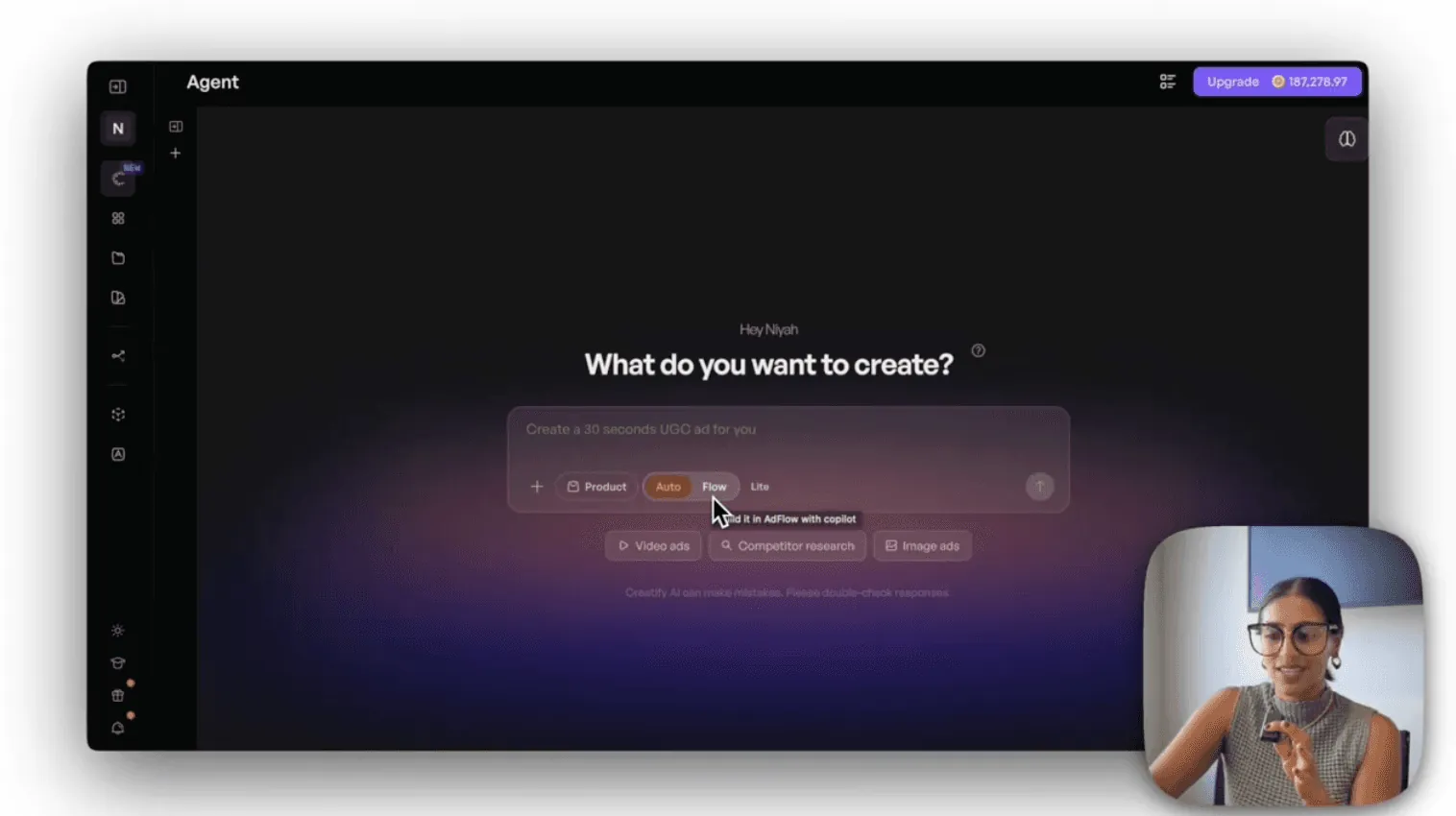
Creatify Agent is a creative agent built for ads. Paste a product link, and in one sitting you have a finished ad. The video below shows two real builds, one in each mode.
What you'll learn
Why Agent was trained on 15M+ ads and $1B in ad spend, and where that shows up in your creative
The difference between Auto mode and Flow mode, and when to use each
How to turn a single product URL into a storyboard, music and a finished ad in Auto mode
How to build a UGC-style ad with a specific hook, tone and storyline in Flow mode
How the node-based canvas lets you swap models, change aspect ratios and edit any scene
How to launch to LinkedIn, Facebook and more with built-in connectors
An agent trained on $1B of ad spend
Agent learned from over 15 million ads and $1B in ad spend. That changes what it optimizes for: it reasons about what drives results, using patterns from real campaigns, and compares your ad against competitor ads while it builds.
It's made for people without a creative team behind them: DTC marketers, solopreneurs and startup founders. You choose how much control you want with two modes, Auto and Flow.
Auto mode: a creative director that does the work
Auto mode is the fastest path to a finished ad. In the video, we build a service ad for a local cleaning company. Drop in the website URL, and Agent scrapes the copy and visual assets. Attach a skill ("Service Ad") and Agent knows what kind of ad you want before you write a prompt.
The prompt stays simple: "help me create an ad for my business." Agent builds a full storyboard, and you can watch it think as it weighs tone, picks cuts and checks competitor ads.
It returns 5 finished scenes with music, plus a breakdown of the hook, the personas and how each shot is built. Hover any scene to use it as a reference for later changes, or download scenes one by one.
Flow mode: a node-based canvas for more control
Flow mode gives you a visual, node-based canvas. You still drive it with prompts, but you control each step. For a UGC-style ad for a hydration drink, we start from the product link again and write a tighter brief: a person visiting the brand's pop-up store in downtown San Francisco, with a dramatic, hype-worthy hook.
Flow mode checks each scene, shows which assets it'll pull and lays out the plan from hook to CTA. Before anything builds, you can edit a scene's description or voiceover, or hit revise to reprompt the whole storyline.
Once you confirm, the nodes connect across the canvas (image node into video node), and you can open any node to change it. You also pick the model and aspect ratio for each node.
Auto or Flow: which one to use
Use Auto mode when you want a finished ad with the least effort. Use Flow mode when you want to direct the details and still have the agent do the building.
Chapters
0:00 Why most AI ad tools fall short
0:42 Auto mode vs Flow mode
1:03 Touring the Agent interface
2:37 Building a service ad in Auto mode
4:30 Inside the auto storyboard and scenes
5:09 The finished service ad
5:46 Switching to Flow mode for a UGC ad
7:34 Editing scenes on the node canvas
9:05 The finished UGC ad and native editor
9:57 Auto vs Flow: when to use each